The problem: approval workflows that nobody uses
Approval workflows fail when they require context switching. A notification arrives in Slack, but the actual approval lives in a separate web UI — login, navigate, re-read, decide. Each hop increases abandonment. Requests expire, developers bypass the process, and the workflow exists only on paper.
dbward’s Slack integration solves this with two capabilities:
- Onboarding — new members request and receive database access entirely within Slack
- Approval workflow — SQL review, approval, execution, and results all happen in Slack threads
Both use the same pattern: request → modal review → approve/reject → audited outcome. And both work seamlessly alongside CLI and API workflows — Slack is an additional surface, not a replacement.
Onboarding: /dbward join
Getting database access traditionally means filing a ticket, waiting for manual user creation, and receiving credentials through an insecure channel. With dbward, a new team member types /dbward join:
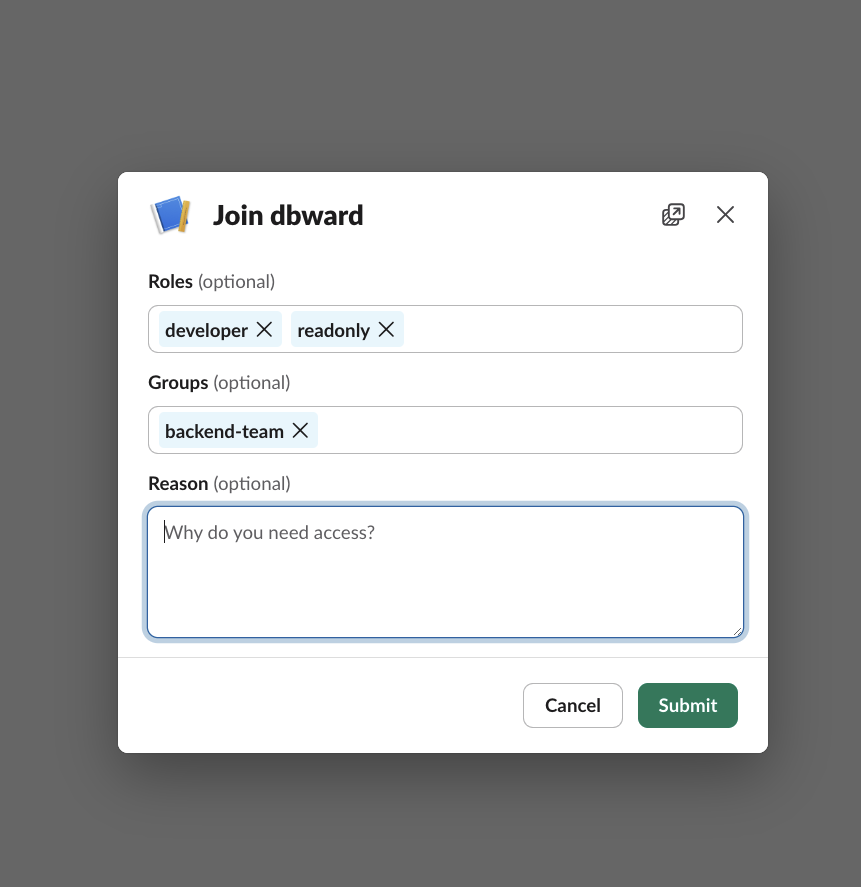
- A modal appears — select a role, select a group, provide a reason
- The admin channel receives a notification with a “Review Request” button
- An admin opens the review modal, sees the requested role and reason, and approves
- User account is created atomically, API token delivered via Slack DM
- The new member configures their CLI and is immediately operational
No tickets. No manual provisioning. No credentials shared in DMs. The admin’s review-and-approve flow is identical to SQL approvals — same buttons, same modals, same audit trail.
Approval workflow: from submission to result
Submitting SQL
Developers and AI agents submit SQL through three entry points — all feeding the same workflow engine:
- CLI:
dbward execute "SELECT ..." --environment production - MCP: AI agents call
dbward_execute_queryas a tool - Slack:
/dbward executeopens a modal to compose and submit SQL directly
Regardless of entry point, every request passes through identical policies, risk scoring, and approval requirements. The Slack channel receives a notification:
- 🔴/🟡/🟢 Risk level
- Database and environment (e.g.,
app / production) - Operation type (DML, DDL, migration)
- Required approvers with @mentions
- “Review Request” button
Only your pending approvals @mention you directly — the channel stays manageable.
Reviewing and approving
CLI → Slack: Developer submits from terminal, reviewer approves in Slack:
Slack → CLI: Developer submits from Slack, DBA approves from terminal:
These demos show cross-surface workflows, but Slack → Slack works too — submit via /dbward execute, approve from the notification, and view results all without leaving Slack.
The approver clicks “Review Request.” A Slack modal opens with everything needed to decide:
- Full SQL text (up to 2000 characters; longer statements truncated — full SQL available via CLI)
- EXPLAIN output (best-effort, 5-second timeout)
- Risk analysis — why it was flagged (large table, CASCADE foreign keys, etc.)
- Affected tables and estimated row counts
Approve or Reject, add a comment (required on reject), submit.
SQL never appears in the channel. Only metadata is visible in the notification. SQL content is exclusively shown in the modal to authorized reviewers. Non-approvers who click the button get an ephemeral rejection message.
Execution and results
Approve ≠ Execute. Approval records the decision. Execution starts only when resumed — from a “Resume” button in Slack, or by a waiting CLI/MCP client. If you submitted via CLI with dbward execute, it waits automatically and streams the result once approved and resumed. This two-phase design enables:
- Timing control: approve now, execute during a maintenance window
- Safe retry: re-dispatch after agent failure without re-approval
- CLI coordination:
dbward request resume req_abc123from a deploy script
Once executed, the result appears in the same thread:
Channel message (always reflects current state):  📋 New Approval Request → ✅ Approved → 🎉 Executed
Thread replies (event log):  ├── ✅ Approved by @alice — "Looks good, proceed"  ├── 🚀 Execution started  └── 🎉 Completed successfully (3 rows affected)
The original message is canonical state — rebuilt from the database on every update, not patched incrementally. Thread replies form the audit trail. Results are viewable through the “View Result” button — never posted as plain text.
Multi-step approvals
Workflows can require sequential or parallel approval from multiple groups:
[[workflows.steps]][[workflows.steps.approvers]]role = "team-lead"min = 1
[[workflows.steps]][[workflows.steps.approvers]]role = "dba"min = 1mode = "any"
All progress stays in one thread. When a step completes, the next approver gets @mentioned automatically.
CLI and Slack working together
Slack isn’t a silo — it’s one surface of the same approval engine. This means CLI and Slack workflows interleave naturally:
Submit from CLI, approve from Slack:
$ dbward execute "ALTER TABLE users ADD COLUMN phone TEXT" \    --environment production --reason "customer support feature"
Request req_a1b2c3 requires approval.  Approvers: role:dba  Status: pending
The DBA sees the notification in Slack, reviews the modal, approves. The CLI user can poll or resume:
$ dbward request resume req_a1b2c3Execution completed: 0 rows affected (DDL)Submit from MCP (AI), approve from Slack, resume from CI:
An AI agent creates a migration request via MCP. The DBA approves from Slack during business hours. A CI pipeline resumes execution during the maintenance window:
# In CI deploy scriptdbward request resume "$REQUEST_ID" --waitApprove from CLI, track from Slack:
A DBA approves via CLI (dbward request approve req_xyz). The Slack thread still updates — the original message reflects the new state, and a thread reply records who approved and when.
All combinations work because Slack, CLI, and API share a single source of truth on the server. No matter where an action originates, every other surface reflects the change.
The complete flow
| Action | Slack | CLI / API | MCP (AI) |
|---|---|---|---|
| Request access | /dbward join | dbward user create | — |
| Submit SQL | /dbward execute | dbward execute | dbward_execute_query |
| Review + Approve | Modal button | dbward request approve | — |
| Resume | ”Resume” button | dbward request resume | dbward_wait_request |
| View result | ”View Result” button | dbward request show | return value |
Every cell shares the same workflow engine, audit trail, and policy enforcement.
Security model and tradeoffs
Slack approvals are convenient. They’re also a security decision worth understanding.
What passes through Slack’s servers: Modal content — SQL text, EXPLAIN, execution results — traverses Slack’s API. Slack is SOC 2 Type II and ISO 27001 certified, but evaluate whether this fits your data handling policies.
What does NOT pass through Slack: Database credentials, approval state, and execution tokens. Slack has no role in the execution path.
Mitigations:
- SQL never posted to channels — only in ephemeral modals to authorized reviewers
[slack]is opt-in — use CLI/API-only for sensitive environments, Slack for the rest- Audit trail independent of Slack — hash-chain records every event regardless of notification delivery
- HMAC-SHA256 signature verification with ±5 minute timestamp and constant-time comparison
- Slack down → CLI/API approvals continue unaffected (persist-first design)
In practice: most teams already transmit comparable information through Slack — incident details, infrastructure configs, customer data during debugging. The incremental risk is typically lower than the risk of approval workflows being bypassed because they’re too inconvenient.
For organizations where SQL must not leave your network, CLI-only remains fully supported.
Setup
$ dbward slack init --server-url https://dbward.example.com --open# → Generates Slack App Manifest, opens browser to create the app
$ dbward doctor --server server.toml ✓ slack_auth_test team=MyWorkspace, bot=dbward ✓ slack_channel C0123ABC456 — bot is member ✓ slack_signing_secret valid[slack]bot_token = "${SLACK_BOT_TOKEN}"signing_secret = "${SLACK_SIGNING_SECRET}"channel = "C0123ABC456"
[slack.onboarding]enabled = trueassignable_roles = ["developer", "readonly"]assignable_groups = ["backend-team", "dba-team"]restricted_roles = ["admin"]The [slack.onboarding] section controls /dbward join. assignable_roles and assignable_groups define what new members can request. restricted_roles hides certain roles from the self-service modal — admins can still assign them during review.
Opt-in: without [slack], dbward operates CLI/API-only. Adding it enables the Slack surface without changing anything else.
Get started
The Docker quickstart deploys server, agent, database, and Slack integration with docker compose up. Setup takes about 5 minutes including Slack app creation.
→ GitHub · Docs · Configuration reference · Previous: Deploying without opening inbound ports